Quick answer
How do you share website access with a freelancer safely?
To share website access with a freelancer safely, create a separate user account for them with only the role their work needs, never your own password. Turn on two-step login, take a full backup, use a staging site for big changes, set an end date, and remove the account the day the work is finished.
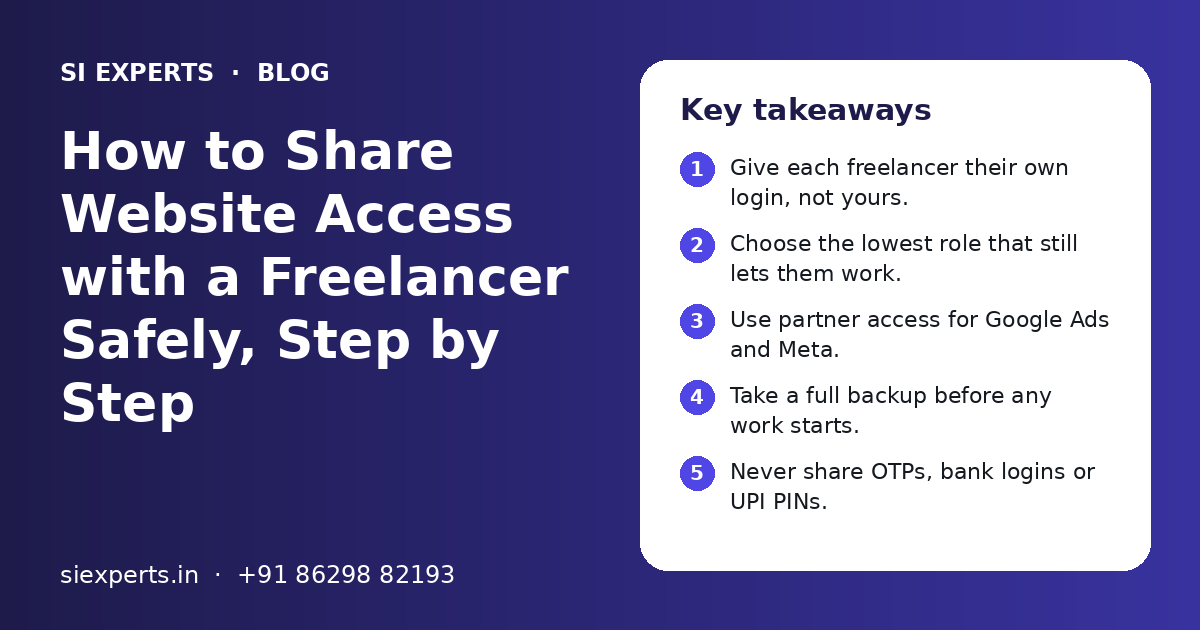
Key takeaways
- Give each freelancer their own login, not yours.
- Choose the lowest role that still lets them work.
- Use partner access for Google Ads and Meta.
- Take a full backup before any work starts.
- Never share OTPs, bank logins or UPI PINs.
- Remove access on the last day of the job.
What is the safe way to share website access with a freelancer?
The safe way to share website access with a freelancer is to give them their own user account with limited rights. You keep the owner login. You can see what they do and remove them in one click.
Many small businesses send the main admin password on WhatsApp instead. It feels quick. But the freelancer can then do anything you can do.
This rule works for every type of expert. A content writer, a WordPress expert, an ads specialist and a full developer all need different access. None of them needs your personal password.
If you are about to hire, it also helps to agree on access rules in writing. Our guide on what to include in a freelancer contract covers this.
Why should you never share your own password?
You should never share your own password because it gives full control, leaves no clear record and is hard to take back. A separate account solves all three problems.
Separate account for the freelancer
- You choose exactly what they can change
- Every change shows under their name
- You remove them without changing your password
- Your email, billing and other tools stay private
Sharing your own password
- Full owner rights, including deleting the site
- No way to tell who made a change
- You must change the password on every device later
- The same password may open your email or other accounts
Many people reuse one password in many places. Sharing one may share all of them. Even an honest freelancer's laptop can be hacked.
A separate login also protects the freelancer. If something breaks, the record shows what they did.
Which access does each type of freelancer need?
Each freelancer needs only the accounts linked to their task. Make a short list before you share anything, and say no to access that is not on it.
| Freelancer | Usually needs | Usually does not need |
|---|---|---|
| Content writer | Website editor or author role, shared folder | Hosting, plugins, ad accounts |
| SEO expert | Search Console, Analytics, website editor role | Billing, domain registrar, payment gateway |
| Web developer | Staging site, website admin, hosting or code access | Ad accounts, bank, GST portal |
| Shopify developer | Collaborator or staff account with set permissions | Store owner login, payout settings |
| Google Ads expert | Google Ads user access, Analytics, tag setup | Website hosting, domain |
| Meta Ads expert | Partner access to ad account, page and pixel | Your personal Facebook login |
| Designer | Shared folder with brand files | Any live website or ad account |
For example, an SEO expert can usually do most work with Search Console, Analytics and an editor login. They may ask for more later to fix redirects or speed. Add that access when the task comes up, not on day one.
How do you give access step by step?
Follow the same steps for every freelancer: plan, back up, create accounts, secure them, test, and set an end date. It takes less than an hour for most small websites.
- 1
List the tasks and the accounts
Write down what the freelancer will do and which accounts each task needs. Remove anything that is not needed.
- 2
Take a full backup
Back up the website files and the database. Save one copy outside your hosting, for example in your own cloud drive.
- 3
Create a separate user for each person
Use the freelancer's own email address. Do not reuse an old staff login or a shared office email.
- 4
Pick the lowest working role
Start with a limited role. Raise it only if a task truly needs more rights.
- 5
Turn on two-step login
Turn it on for your owner account and ask the freelancer to turn it on for theirs.
- 6
Use staging for big changes
Let the freelancer build and test on a copy of the site, then move approved work to the live site.
- 7
Test the access together
Ask the freelancer to log in and confirm what they can see. Fix gaps the same day.
- 8
Record it in an access list
Note the person, the account, the role and the start date in one sheet.
- 9
Set an end date
Agree when access will be removed, such as the last day of the project or the end of the month.
- 10
Remove access when the job ends
Delete or disable the user, revoke partner access and change any shared passwords.
These steps match the setup we follow in our remote expert onboarding checklist. That post covers the brief, tools and first-week plan as well.
How do you share WordPress, Shopify and hosting access?
Each platform has its own way to add people. WordPress uses user roles, Shopify uses staff and collaborator accounts, and most hosting panels let you add extra users or limited logins.
WordPress
Go to Users, then Add New. Enter the freelancer's email and pick a role. WordPress has built-in roles like Administrator, Editor, Author and Contributor. A writer needs Author or Editor. A developer fixing plugins may need Administrator, but only for the job and only after a backup. If you use WooCommerce, a store helper may need the Shop Manager role instead of full admin. Our WooCommerce expert page explains common store tasks.
Shopify
Shopify lets you add staff accounts with chosen permissions. Developers and agencies often send a collaborator request, which you approve from your admin and can limit to certain areas. Do not give the store owner login. Keep payout and billing settings with yourself. A Shopify expert should be comfortable working this way.
Hosting and domain
Hosting access is powerful. With it, a person can delete the whole site. Give it only to a developer who needs it. Many hosting panels let you create a separate user, an FTP account limited to one folder, or SSH access with the developer's own key. Your domain registrar login almost never needs to be shared.
Need help with your project?
Talk to the SI Experts team. Free first call, simple advice, clear quote.
How do you give Google Ads and Meta access without passwords?
Google Ads and Meta both let you add people or partners by email or business ID. You never need to share your Google or Facebook password.
In Google Ads, open Admin, then Access and security, and invite the freelancer's email. You can choose an access level such as Admin, Standard or Read only. Agencies may instead send a manager account link request, which you approve and can remove later.
In Meta Business Suite, go to Business settings. You can add a person with access to chosen assets, or add a partner using their business ID. Give them access to the ad account, page and pixel they need. Keep yourself as the full admin of the business.
| Account | Safe way to share | Keep with you |
|---|---|---|
| Google Ads | User invite or manager account link | Billing and payment method |
| Google Analytics | Add user with a suitable role | Administrator role |
| Search Console | Add user as full or restricted user | Owner status |
| Meta Business | Add person or partner to chosen assets | Business admin and payment method |
| Instagram and Facebook page | Page access through Business settings | Your personal login |
A Google Ads expert or a Meta Ads expert who asks for your personal password instead of user access is a warning sign. Ask why, and offer the proper method.
What if a shared password cannot be avoided?
If a tool has only one login, share it through a password manager, not chat or email. Change it as soon as the work ends.
Some older tools do not support extra users. In that case:
- Use a password manager that lets you share one item with one person
- Create a new strong password just for this period
- Never send passwords on WhatsApp, SMS, email or a shared sheet
- Keep two-step login on, with codes going to your phone, not theirs
- Change the password on the last day and check the login history
Two-step login can cause a small problem here. The freelancer may need a code from your phone to log in. Do not read the code out without thinking. Only share it when you know who is asking and why, and never for accounts linked to money.
What should you never share with a freelancer?
Never share OTPs for bank or payment accounts, net banking logins, UPI PINs, card details or your main email password. No genuine website or ads task needs them.
- Net banking user ID and password
- UPI PIN or the phone that holds your UPI apps
- Debit or credit card number, CVV or card OTP
- OTPs from your bank or payment gateway
- GST portal or income tax login
- Your main Gmail or work email password
- Domain registrar owner login
- Payment gateway payout settings
If ad spend needs to be paid, add your own card to the ad account yourself. If a payment gateway needs to be connected to your site, you can enter the keys yourself while the developer guides you on a call.
How do you remove access after the job is done?
On the last day, remove every user, partner link and shared password the freelancer had. Then check that you own all files, code and reports.
Old logins often stay open for years. Use your access list so nothing is missed.
- Delete or downgrade the website user account
- Remove the Shopify staff or collaborator account
- Remove hosting users, FTP accounts and SSH keys
- Remove Google Ads, Analytics and Search Console users
- Remove the person or partner in Meta Business settings
- Change any password that was shared
- Check plugins, admin users and API keys for anything new and unknown
- Confirm that code, designs and reports are in your own folders
Removing access is not a sign of distrust. Good freelancers expect it. If a freelancer stops replying before the work is done, read what to do if a freelancer stops responding.
How does SI Experts handle access when you hire through us?
We ask for user-level access only, never your owner passwords, and we help you remove it cleanly when work ends.
SI Experts is powered by Shivah Web Tech, with 11+ years of experience, a 25+ in-house team and 500+ projects. Our parent team is a Google Partner, Meta Business Partner and Shopify Partner, so our experts are used to working with proper user and partner access.
- A clear list of the access each task needs, and why
- A backup check before any change to a live site
- Staging first for big web development work
- An access removal checklist at the end of the job
You can hire an expert by the hour, by the month or for a fixed project. Contact us to tell us about your work. You get a clear quote after a free call.
Frequently Asked Questions
Is it safe to give a freelancer admin access to my website?
It can be safe if you do it the right way. Give admin access through a separate user account in the freelancer's own name, never your owner login. Take a full backup first. Use admin only when the task needs it, such as plugin or theme work, and lower or remove the role as soon as the task is finished.
Should I share my hosting password with a web developer?
Only if the work truly needs hosting access, such as server settings, file fixes or moving the site. Even then, try to create a separate user, FTP account or SSH key for the developer. If your host allows only one login, share it through a password manager and change it on the day the work ends.
How do I give a Shopify developer access to my store?
Ask the developer to send a collaborator request, or add them as a staff member with only the permissions they need. Approve the request from your Shopify admin. Do not share the store owner email and password. Keep billing and payout settings with yourself, and remove the account when the project is complete.
How do I give Google Ads access to an agency or freelancer?
Invite them by email from the access settings in your Google Ads account and choose a suitable access level, or approve a link request from their manager account. You never need to share your Google password. Keep your own admin access and your payment method, and remove the user or unlink the manager account when the work ends.
Can a freelancer ask for my OTP?
A freelancer should never need an OTP for your bank, card, UPI or payment gateway. In rare cases a two-step login code is needed for a website or tool login. Share that only when you know exactly who is asking and why. If you are unsure, say no and offer to log in together on a call.
When should I remove a freelancer's access?
Remove access on the last day of the agreed work, or sooner if the project stops. For ongoing monthly work, review access every month and remove anything no longer needed. Keep a simple access list with names, accounts, roles and dates, so removing access takes only a few minutes and nothing is forgotten.